
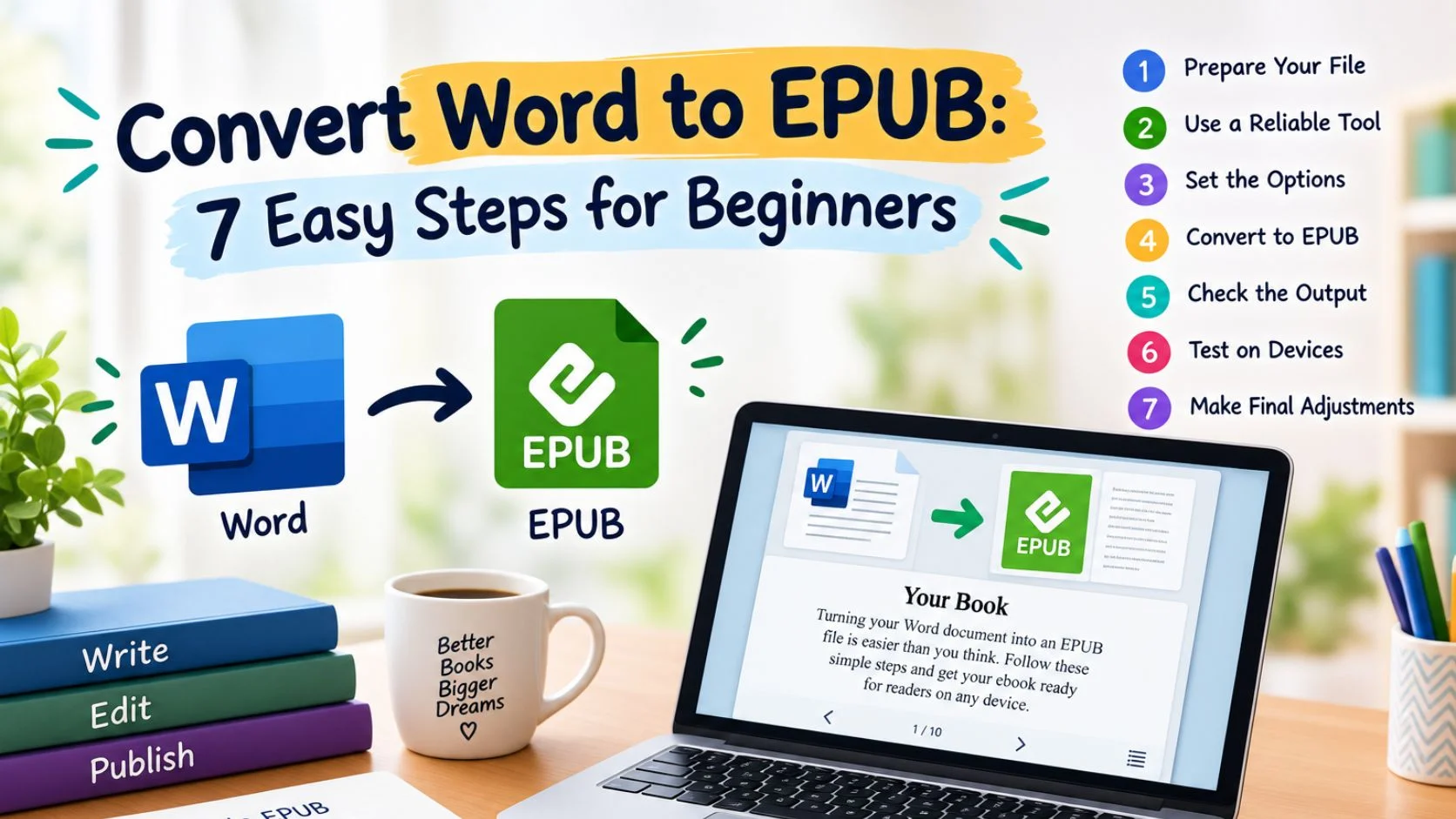
Convert Word to EPUB: 7 Easy Steps for Beginners
Writing a book in Microsoft Word is simple and convenient. Most authors already know how to use Word. It makes writing, editing, and organizing a manuscript much easier. However, a Word document is not always the best format for an ebook. This is where EPUB becomes useful. EPUB is made for digital reading across different devices. It can adjust text according to the reader’s screen size. If you plan to publish an ebook, learning to convert Word to EPUB can save you time. You also do not need advanced technical skills for this process. With proper preparation, beginners can create a clean and professional ebook.
This guide explains the process in simple steps. We will begin with preparing your Word manuscript. Then, we will discuss formatting, headings, images, and document structure. Later, we will cover the actual conversion process. We will also discuss common problems and ways to check your final EPUB. By following each step carefully, you can avoid many common ebook formatting issues.
Convert Word Document to EPUB
Before you convert Word document to EPUB, you should prepare your manuscript. Good preparation makes the entire process much easier. It also reduces formatting problems after conversion. Many beginners think conversion software will fix everything automatically. Unfortunately, that is not always true. Conversion tools work best when the original Word document is already organized.
Start by opening your finished manuscript in Microsoft Word. Read through the document from beginning to end. Look for unnecessary spaces between words and paragraphs. Remove extra blank lines where they are not needed. Check your chapter titles and section headings carefully. Make sure your chapters are arranged in the correct order.
You should also look for comments and tracked changes. These are useful while editing a manuscript. However, they should normally be removed before creating the final ebook. Leaving them inside the document can create unwanted content. It may also cause problems during the conversion process.
Next, check your fonts and paragraph formatting. Try to keep the document simple and consistent. Using too many fonts can make an ebook look messy. It can also create unexpected results after conversion. A clean manuscript gives your conversion software a better starting point.
Images also deserve attention at this stage. Make sure every image is placed beside the correct content. Check whether images are clear enough for digital reading. Avoid using unnecessarily huge image files. Large images can increase your final ebook size without adding much value.
Step 1: Clean Your Word Manuscript
The first step is cleaning your Word manuscript. This may sound simple, but it is one of the most important steps. A messy document can create several problems after conversion. These problems may include strange spacing and missing headings. You may also see unexpected page breaks or image placement issues.
Begin by removing unnecessary spaces throughout your manuscript. Some authors use several spaces to position text. This may look fine in Word, but EPUB handles spacing differently. Use proper paragraph settings instead of repeated spaces. This gives your ebook a cleaner structure.
Look for unnecessary blank paragraphs as well. You may have pressed Enter several times between sections. This can create large empty areas in your EPUB. Remove these extra paragraph breaks wherever possible.
You should also check chapter breaks. Each chapter should begin clearly and consistently. Avoid using many manual page breaks unless they are truly needed. EPUB uses a flexible reading system rather than fixed printed pages.
Review your paragraphs for consistency too. Make sure the same type of content uses the same formatting. For example, all normal paragraphs should follow one consistent style. Chapter titles should also follow one consistent style.
This preparation is especially important when you convert Word to EPUB format. The cleaner your source document is, the easier the conversion becomes. You will also spend less time correcting the final ebook.
Step 2: Use Proper Heading Styles

Headings are extremely important when you convert Word to EPUB. They do more than make your manuscript look organized. They can also help ebook software understand your book’s structure.
Microsoft Word includes built-in heading styles. You can find them in the Styles section. Use Heading 1 for major chapter titles. Use Heading 2 for important sections within chapters. Heading 3 can be used for smaller sections when necessary.
Avoid simply making chapter titles bold and large. That creates visual formatting, but Word may not recognize it as a true heading. Proper heading styles provide useful structural information.
For example, your first chapter title could use Heading 1. Sections inside that chapter could use Heading 2. Smaller sections could use Heading 3. Keep this structure consistent throughout the entire manuscript.
This structure can also help create your ebook’s table of contents. Many conversion tools read the heading hierarchy automatically. This means you may not need to create every navigation link manually.
A good heading structure also improves the reading experience. Readers can quickly understand how your book is organized. They can also move between chapters more easily.
Before continuing, scroll through your entire Word document. Check every chapter heading individually. Make sure no chapter has a different heading style by accident. Fixing these details now is much easier than fixing them later.
Step 3: Check Your Paragraph Formatting
Paragraph formatting can affect how your ebook looks. Word gives you many options for spacing and indentation. However, not every setting works well after ebook conversion.
Keep your paragraph formatting simple. Avoid using spaces to create indents. Instead, use Word’s paragraph settings when indentation is needed. This gives the conversion software clearer instructions.
Check the spacing before and after paragraphs. Too much spacing can make an ebook look uneven. Too little spacing can make longer sections difficult to read. Choose a comfortable and consistent structure.
You should also check alignment. Normal book text is usually left-aligned or justified. However, the best choice can depend on your publishing style. Keep your choice consistent throughout the manuscript.
Lists should also use Word’s built-in list features. Do not create numbered lists using manually typed numbers. Automatic lists are easier for conversion tools to recognize.
The same rule applies to bullet points. Use Word’s bullet list feature when possible. This can help maintain the correct structure after you convert Word doc to EPUB.
Simple formatting usually gives better results. Your goal should be a clean and readable ebook. You do not need complicated visual effects to make your book professional.
Step 4: Prepare Images Before Conversion

Images can make an ebook more attractive and useful. However, they need proper preparation before conversion. Poorly prepared images can create several problems inside an EPUB.
First, check whether every image belongs in the manuscript. Remove unnecessary images that do not support the content. This can help keep your ebook file smaller.
Next, inspect the quality of your images. They should be clear enough for digital screens. Avoid extremely low-resolution images because they may appear blurry. At the same time, avoid huge files that add unnecessary weight.
Make sure each image appears in the correct location. An image should support the paragraph or section around it. After conversion, the image may move slightly depending on the ebook reader.
You should also avoid placing important text inside an image. Readers may use different screen sizes and settings. Text inside images may become difficult to read. Whenever possible, keep important information as normal ebook text.
Image placement becomes especially important when you convert Word to EPUB format. EPUB uses a flexible layout. An image that appears perfectly positioned in Word may behave differently on another screen.
After conversion, always inspect your images again. Check them on more than one device if possible. This simple test can reveal problems that are not visible on your computer.
Step 5: Save Your Word Document Correctly
Once your manuscript is clean, save a fresh copy. If you are using a modern version of Microsoft Word, DOCX is usually a practical format.
Give your file a clear and simple name. You could use a name such as MyBook-Final.docx. Avoid confusing filenames with many numbers and unfinished versions.
It is also important to keep your original manuscript safe. Create a backup before you begin the conversion process. Never rely on only one copy of your book.
You may need to make changes after conversion. Keeping your original Word document gives you a reliable source file. You can return to it whenever you discover a formatting problem.
Before moving forward, read through your document one more time. Check your chapter order and headings. Review your images and links. Remove comments and tracked changes.
At this point, your manuscript should be ready for the next stage. You have completed the most important preparation work. Now you can move closer to the actual ebook conversion process.
Word to EPUB: Why Preparation Matters
Many new authors search for Word to EPUB solutions because their manuscript is already finished. They expect the conversion tool to do everything. In reality, the quality of the final EPUB depends heavily on the original document.
Think of your Word manuscript as the foundation of your ebook. If the foundation is organized, the next steps become easier. If the foundation is messy, problems can appear throughout the finished file.
This is why professional ebook formatting starts before conversion. Good heading styles create better navigation. Clean paragraphs create better reading flow. Proper images create a more polished result.
You also reduce the amount of manual editing needed later. Instead of fixing dozens of small problems, you can focus on checking the final file.
This approach is useful whether you convert Word to EPUB for your own book or for a client. A consistent workflow makes the process easier to repeat.
Convert DOC to EPUB
Some authors still have manuscripts saved as older DOC files. If that applies to you, you can usually open the file in Microsoft Word. Then save it as a newer DOCX document.
After saving the new version, check the formatting carefully. Older Word files may contain outdated formatting. They can also contain hidden spaces or unusual styles.
Do not immediately convert DOC to EPUB without checking the document. Take a few minutes to review the manuscript first. Look at your headings, paragraphs, images, and page breaks.
Saving the document as DOCX can provide a cleaner starting point. It can also make your file easier for modern conversion software to process.
Once the document is ready, you can continue with the EPUB conversion process. The same basic preparation rules still apply.
How to Make EPUB File From Word
If you are searching for how to make EPUB file, the basic process is easier than it first appears. You do not need to understand complicated programming. You mainly need a clean manuscript and suitable conversion software.
The first part of the process happens inside Word. You prepare the content and organize the document structure. The second part involves converting that document into an EPUB package.
After conversion, you review the finished ebook. This final review is essential because different reading devices can display content differently.
The most important lesson is simple. Do not rush into conversion before preparing your manuscript. Spending extra time on the Word file can make the final EPUB much better.
What Is EPUB and Why Do Authors Use It?

EPUB is a digital ebook format designed for flexible reading. Unlike a traditional printed page, EPUB content can adjust to different screens.
A reader may open your ebook on a phone, tablet, computer, or dedicated reading device. The text can change based on the reader’s settings. This creates a more comfortable experience.
EPUB can also support useful ebook features. These can include navigation, images, links, and structured chapters. This makes the format suitable for many types of books.
For authors, EPUB provides flexibility. You can create and edit your manuscript in Word first. Then you can convert Word to EPUB when the content is ready.
Understanding this difference can help beginners avoid confusion. Word is mainly a writing and editing format. EPUB is mainly a reading and publishing format.
Common Mistakes Before Converting Word to EPUB
One common mistake is ignoring heading styles. Authors sometimes format chapter titles manually. This may look correct in Word but cause navigation problems later.
Another mistake is using too many fonts. Different fonts can create inconsistent results across reading applications. Keeping your formatting simple is usually safer.
Some authors also use manual spaces for alignment. This is another habit that can cause problems. Use proper paragraph and alignment settings instead.
Large images are another common issue. They can make the EPUB unnecessarily large. They may also load slowly on some devices.
Do not forget your links either. Check every important link before conversion. A broken link can create a poor reader experience.
Finally, do not skip the backup step. Keep your original Word manuscript somewhere safe. It can save you from major headaches later.
Step 6: Convert Word to EPUB Format
Now your manuscript should be ready for conversion. The next step is to convert Word to EPUB format using suitable ebook software. Many tools can convert a DOCX manuscript into an EPUB file.
Start by opening your chosen conversion tool. Import your prepared Word document and select EPUB as the output format. Some tools may also ask for your book title and author name.
Enter your information carefully. Check the spelling before continuing. You may also be able to add your cover and book metadata.
Once everything looks correct, start the conversion. The software will create an EPUB version of your Word manuscript. The process may take only a few moments.
Do not upload the file immediately. Conversion is only one part of the process. You should always check the finished EPUB before publishing it.
Word to EPUB Conversion Settings
When you convert Word to EPUB, your software may offer several settings. These can include language, metadata, cover, and table of contents options.
Keep your settings simple if you are new to ebook formatting. Add the correct title and author information. Select the correct language for your manuscript.
If your software can create a table of contents, check that your Word headings are already correct. Proper Heading 1 and Heading 2 styles can make this process easier.
Avoid changing advanced settings without understanding them. Simple settings usually work well for a properly prepared manuscript.
Step 7: Check the Finished EPUB
After you convert Word to EPUB, open the finished file in an ebook reader. This step is extremely important.
Start by checking the cover and opening pages. Make sure the title and author name are correct. Then move through several chapters.
Look for unusual spaces, missing text, or incorrect headings. Check whether paragraphs look natural and easy to read.
Images should also be checked carefully. Make sure they appear near the correct content. Look for blurry images or unusual positioning.
Next, test your table of contents. Each chapter should appear in the correct order. Chapter links should also take readers to the right location.
Try opening the EPUB on another device if possible. A phone or tablet may show f
Formatting differently from your computer.
Convert Word Doc to EPUB Without Losing Formatting
Many authors worry about losing formatting when they convert Word doc to EPUB. Some changes are normal because Word and EPUB use different layouts.
Word is designed around pages. EPUB is designed around flexible screens. Text can move when readers change their font size.
Therefore, do not try to make your EPUB look exactly like a printed Word document. Focus on clean text, headings, images, and navigation.
Your main content should remain intact. If important elements disappear or move incorrectly, return to the original Word file.
Fix the formatting there and create a new EPUB. This is usually easier than repairing many problems inside the final ebook.
Convert DOC to EPUB: Common Problems
When you convert DOC to EPUB, you may notice a few common problems. Extra blank spaces are one of the most frequent issues.
These spaces often come from repeated paragraph breaks in Word. Remove unnecessary blank lines before converting again.
Incorrect headings are another common problem. Make sure chapter titles use proper Word heading styles.
Images can also move during conversion. Check their position and size after creating the EPUB.
Tables may be difficult on smaller screens. If your book contains tables, test them on a phone or tablet.
Lists should use Word’s built-in list options. Avoid creating numbered lists with manually typed numbers.
These problems are usually easy to fix. Correct the Word document and convert it again.
How to Make EPUB File and Test It

If you are learning how to make EPUB file, remember that testing is just as important as creating it.
An EPUB may look different on different devices. Readers can change font sizes and screen settings.
Open your ebook on a computer and another device when possible. Check the text, headings, images, and navigation.
Read different sections from the beginning, middle, and end. This helps you find problems that appear later in the manuscript.
You do not need complicated testing. Simply read the ebook like a normal reader. Ask whether everything looks clean and easy to follow.
Check Your Ebook Before Publishing
Before publishing, complete one final review. Check your cover, title, author name, and table of contents.
Test important hyperlinks and references. Make sure they open the correct pages.
Look for missing text, strange spacing, and broken images. Check your chapters in different sections of the book.
If possible, validate the EPUB with a reliable validation tool. This can find technical issues that are not always visible while reading.
Fix any problems before uploading the final file. Keeping both your original Word document and EPUB is also a good idea.
Word to EPUB for Self-Publishing
Many authors use Word to EPUB workflows for self-publishing. Word provides an easy writing environment. EPUB provides a flexible reading format.
This method works especially well for novels, guides, and nonfiction books. Books with many tables or complex designs may need additional formatting.
Always check the current requirements of your publishing platform. Different platforms can have different file requirements.
Testing your ebook before uploading can prevent unnecessary rejection or formatting issues.
Frequently Asked Questions
Can I convert Word to EPUB for free?
Yes, several tools can handle basic Word-to-EPUB conversion. The best choice depends on your manuscript and formatting needs.
Can beginners convert Word to EPUB?
Yes. Beginners can complete the basic process without coding skills. Proper Word formatting makes the process much easier.
Can I convert a DOC file to EPUB?
Yes. You can usually open the DOC file in Word and save it as DOCX first. Then you can convert the newer file into EPUB.
Why does my EPUB look different from Word?
Word uses a page-based layout, while EPUB uses a flexible layout. Text can move when readers change their font size or screen settings.
Can EPUB include images?
Yes. EPUB files can contain images. Always check image quality and placement after conversion.
Why is my EPUB table of contents wrong?
The problem may come from incorrect heading styles. Check your chapter headings in Word before creating the EPUB again.
Is EPUB better than PDF for ebooks?
EPUB is usually better for flexible reading. PDF is better when you need to preserve an exact page design.
Final Thoughts
Learning to convert Word to EPUB is easier when you follow a clear process. Start with a clean and well-organized Word manuscript.
Use proper heading styles and consistent formatting. Prepare your images and remove unnecessary spaces. Then convert your document using a suitable ebook tool.
After conversion, always inspect the finished EPUB. Check your chapters, images, links, cover, and table of contents.
If you find problems, fix them in the original Word document. Then create the EPUB again.
With a little practice, you can create clean and reader-friendly EPUB files. The key is simple preparation, careful conversion, and proper testing.

We help authors bring their stories to life through professional online book publishing services. From manuscript formatting and cover design to Amazon KDP publishing and global distribution, we make self-publishing simple, affordable, and successful.
